
Poker Tournament Management App
Run Poker Tournaments Like a Pro!
From First Hand to Final Table
Seat draws, table balancing, the clock, payouts and league standings: Shuffle Up and Deal! runs the whole night from your phone or tablet.


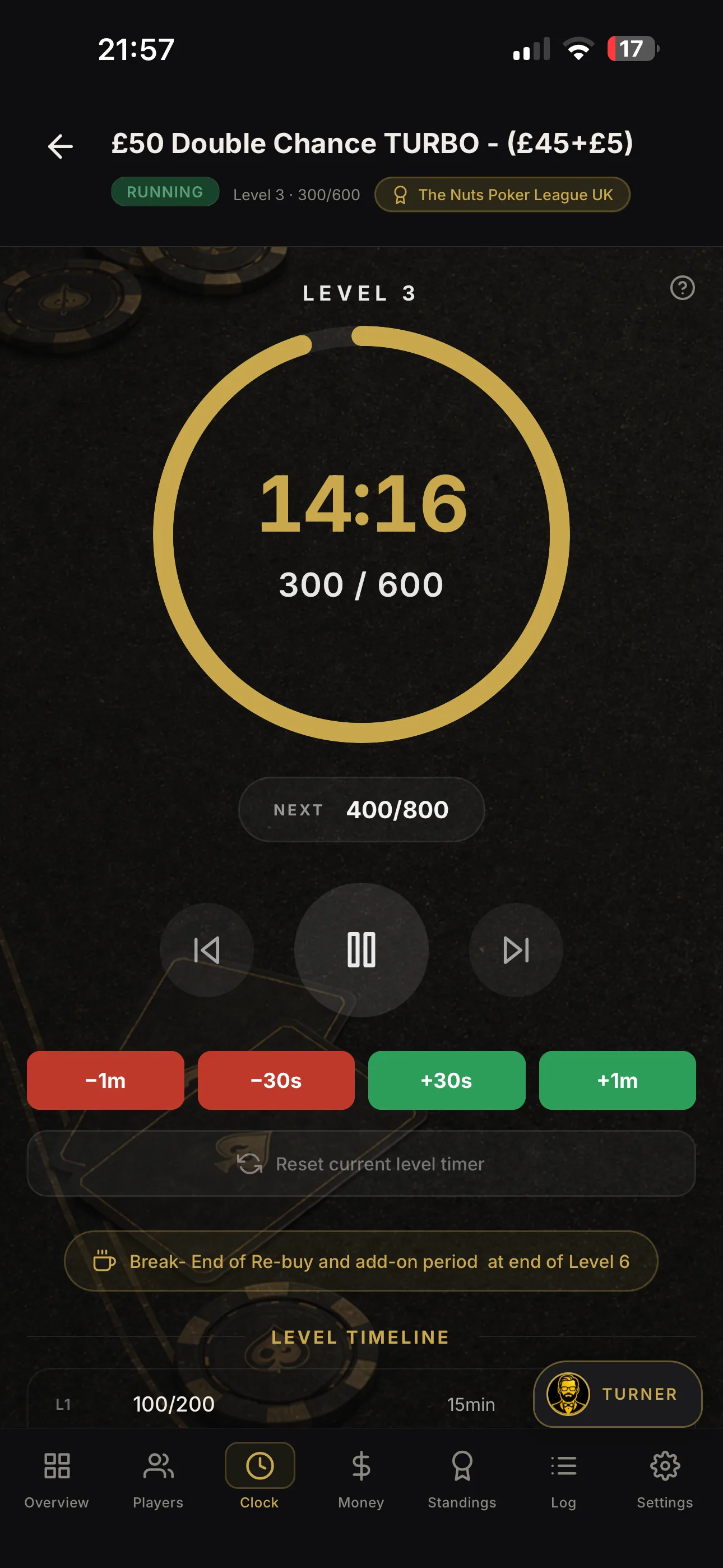
3 Step Live Tournament Display for Organizers: Reliability First Setup
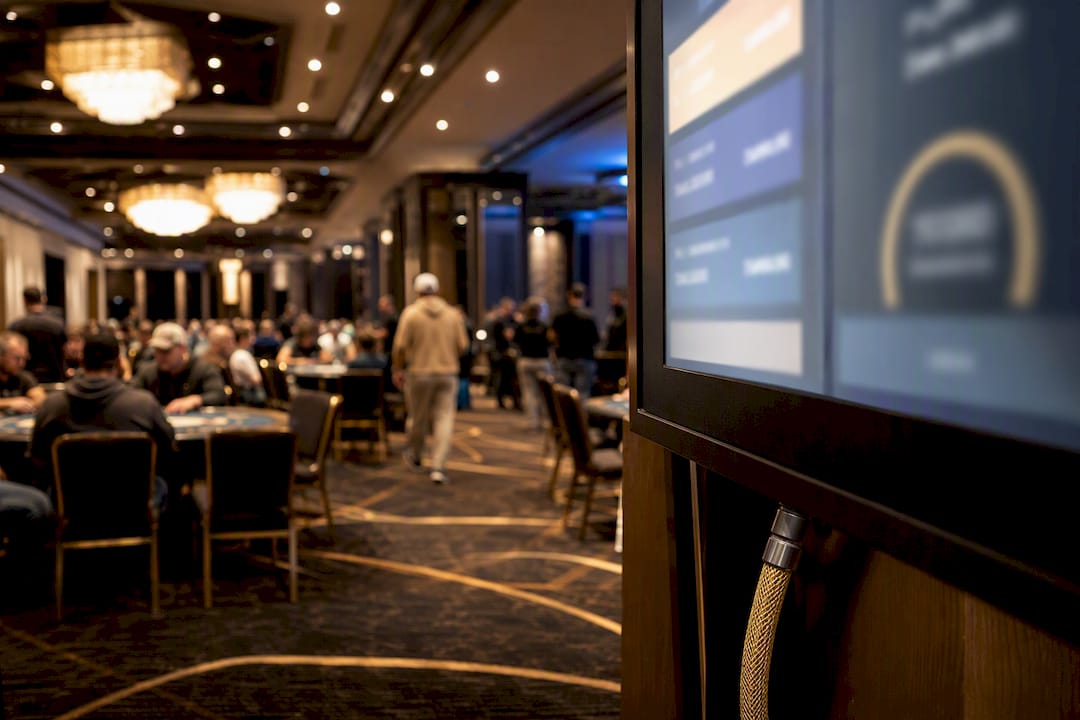
The fastest way to get live scores in front of a room is a web-based public display link, often called TV mode: generate it, open it on a screen, then cast or plug in via HDMI. Most modern tournament tools build this as a single browser page that updates itself, so there’s no app to install and no manual refresh required. Do that correctly and you cut desk queries dramatically, because players and spectators can simply look up.
TL;DR:
- Most live tournament displays can be set up in under ten minutes by configuring the event, opening the URL on the screen, and connecting via HDMI or casting.
- Reliable operation requires separating the controller device from the display device and conducting thorough AV tests before the event starts.
- The display should update automatically in real time and feature a dedicated admin view to prevent desynchronization during live results entry.
- Screens should be designed for accessibility with large fonts, high contrast, and uncluttered layouts to ensure visibility for all spectators.
- Using a platform like Shuffle Up and Deal! enables seamless integration of live scoring, seating, and streaming without extra hardware, supporting quick setup and day-of troubleshooting.
Table of Contents
- What does a live tournament display actually show?
- The three-step setup checklist for going live
- Choosing the right screen, cable, and casting method
- Must-have features for a display you can trust
- Reliability and operational best practices
- Keeping the room engaged between rounds
- How Shuffle Up and Deal! supports live tournament displays
- Accessibility considerations for live tournament displays
- Integration with external scoring and timing systems
- Real-time data accuracy and latency management
- Customisation for chess, esports, card games, and beyond
- Common troubleshooting tips during live events
- Security and privacy considerations for live streamed displays
- Practitioner perspective: what actually goes wrong on the day
- Get a live display running with Shuffle Up and Deal!
- Sources
- FAQ
What does a live tournament display actually show?
A well-configured screen isn’t just a scoreboard. It’s the single source of truth for everyone in the room, which is exactly why organisers lean on one instead of a printed sheet that’s out of date by round two.
Most setups combine a handful of live elements on rotation or on a split view, such as current matches or table assignments so players know where to sit, live standings updating instantly when results are entered, a round clock counting down to the next break or level change, and a recent-results feed showing the last completed matches or hands.
Because updates flow automatically from a controller device to the public screen, nobody needs to walk over and ask “what’s my table?” or “how long left in this level?” The screen answers before the question’s asked. Behind the scenes, this works because there’s one admin or controller view feeding every display, which is the trust signal that separates a reliable setup from a chaotic one. Whoever is entering results stays the single authority; the screen just mirrors what they’ve confirmed.
The three-step setup checklist for going live
You don’t need an AV technician for this. Most events get from “nothing on screen” to “fully live” in under ten minutes if you follow the sequence in order.
- Configure your event and switch on the public display link. In your tournament dashboard, set up the structure (rounds, blinds, or match format), then find the toggle for a TV mode or public display link. This is standard functionality across serious tournament software, and it’s the step people skip when they’re rushing.
- Open the link on your display device, or copy the embed code. Load the public URL directly in the browser on your TV, projector laptop, or kiosk screen. If you’re building a custom venue page or streaming overlay, most tools also offer an embed snippet you can drop straight into a browser source.
- Connect via HDMI, cast, or add it to OBS. Plug a laptop into the venue screen with an HDMI cable, cast from a phone or tablet using Chromecast or AirPlay, or, if you’re streaming, add the display URL as a browser source inside OBS so it becomes part of your broadcast layout.
Test this sequence before doors open, not five minutes before round one starts.
Choosing the right screen, cable, and casting method
The best hardware for your event depends entirely on venue and whether you’re streaming to anyone off-site. A card room running a Tuesday night league doesn’t need the same setup as a producer broadcasting a final table.
For a straightforward on-site display, a smart TV or projector running the public URL in full-screen kiosk mode is usually the simplest option. A laptop connected via HDMI is often the most reliable choice when Wi-Fi casting is unreliable, eliminating a potential point of failure. Casting methods each have trade-offs: AirPlay works well on Apple hardware but can suffer on congested Wi-Fi; Chromecast is cross-platform but may lag compared to wired connections; HDMI offers the most stable connection but requires a physical cable to the screen.
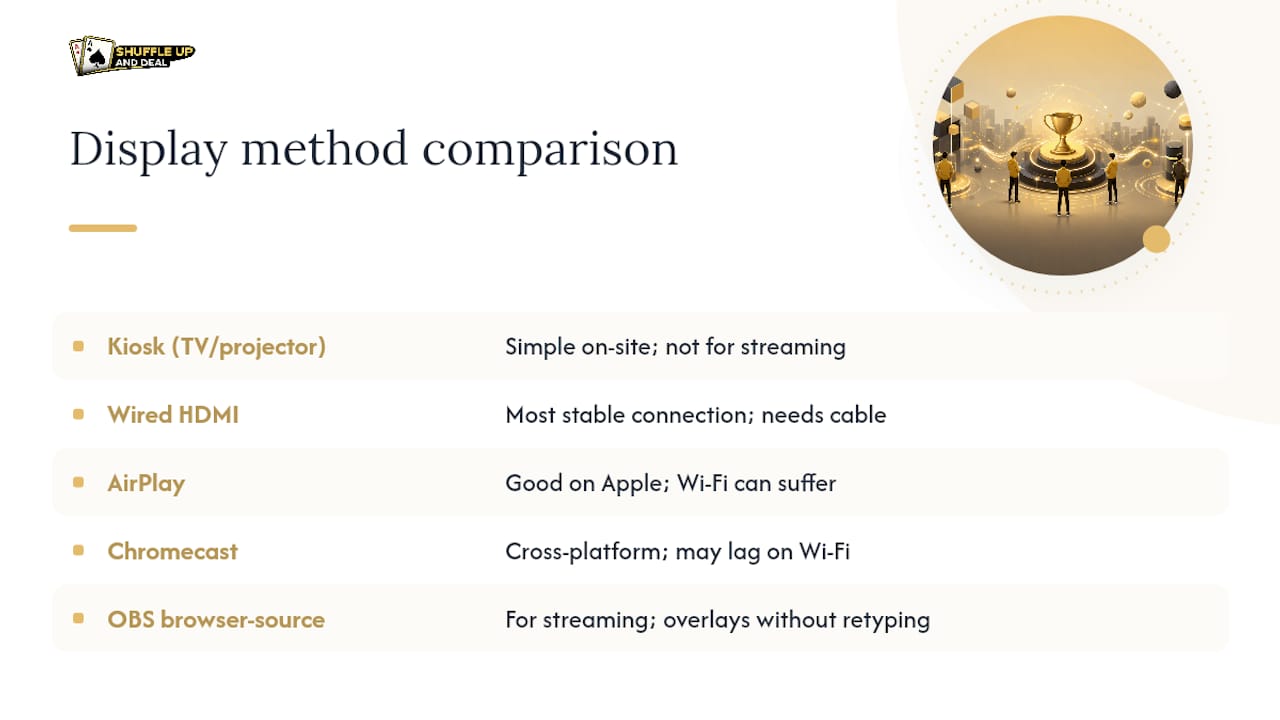
If you’re streaming, skip full-screen kiosk mode entirely and instead add the display page as an OBS browser source, which lets you layer it transparently over camera feeds without retyping a single number.
Must-have features for a display you can trust
Not every scoreboard tool is built the same, and the gap shows up exactly when you need it least, mid-round, with a room full of players watching. Before you commit to a setup, check it against this shortlist.
- Automatic real-time updates. The screen should refresh itself the instant a result is entered, with no manual reload. This is the baseline feature that professional organisers prioritise above almost everything else.
- A dedicated admin or controller view, synced across devices. One person enters results; every screen reflects it instantly, keeping a single source of truth even if three staff members are running different tablets.
- Full-screen TV mode with visual themes. Venue branding and legibility both matter when the screen is being read from thirty feet away.
- A public link and QR code. Players scan and follow standings on their own phones without installing anything, which is part of why the public-link pattern has become the default across event software.
- OBS or streaming compatibility. If you ever plan to broadcast, this needs to work as a clean browser source from day one, not as an afterthought.
Reliability and operational best practices
Most live display failures aren’t software problems. They’re process problems, and they’re avoidable with a few habits baked into your day-of routine.
The single biggest fix: separate your controller device from your display device. If the tablet entering results is the same one plugged into the screen, one accidental tap on the wrong tab takes your public display down mid-round. Best-practice guidance from tournament software providers consistently flags this separation as the fix that prevents the most disruptions.
Run a full AV test before round one, not during it. Confirm HDMI actually fits the screen’s aspect ratio, confirm casting connects on the venue’s actual Wi-Fi (not your office Wi-Fi), and confirm the browser you’re using renders the page cleanly. Bring a mobile hotspot as backup and keep an HDMI cable in your kit even if you planned to cast, because venue internet is the least predictable variable you’ll deal with all day.
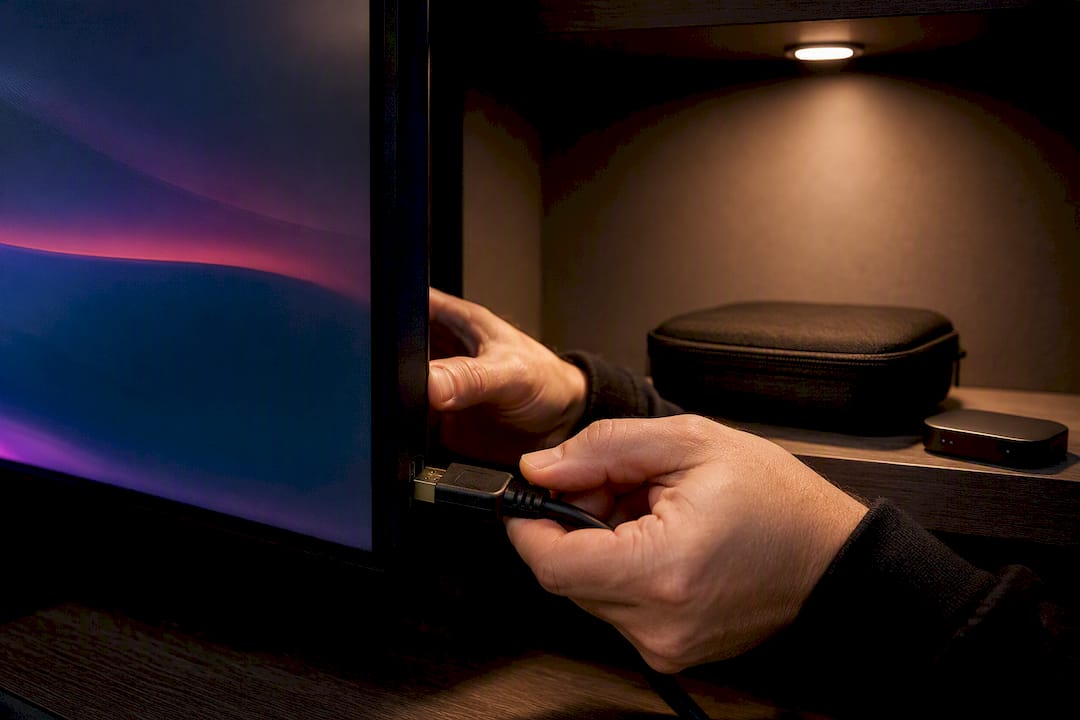
Pro Tip: Disable screensaver and power-saving settings on your display device before doors open. Nothing kills confidence in your event faster than a screen going dark mid-final-table because the TV decided it was idle.
Keeping the room engaged between rounds
A screen that only shows standings goes stale fast, especially during long breaks or slow rounds where nothing’s changing on the leaderboard.
- Add a social wall or live poll during downtime; tools like SocialWall turn a dead screen into something people actually watch, and can be running inside fifteen minutes.
- Rotate in sponsor panels between leaderboard and match views, since a large screen is inventory you can sell to sponsor once you’ve got the audience’s attention.
- Set an auto-rotation schedule across your different views so the display keeps moving without anyone standing behind it clicking “next.” Many display platforms handle this natively cycle standings, results, and sponsor slots on a timer. For inspiration on what keeps spectators watching between plays, event screens built for fan engagement offer useful ideas even outside poker.
How Shuffle Up and Deal! supports live tournament displays
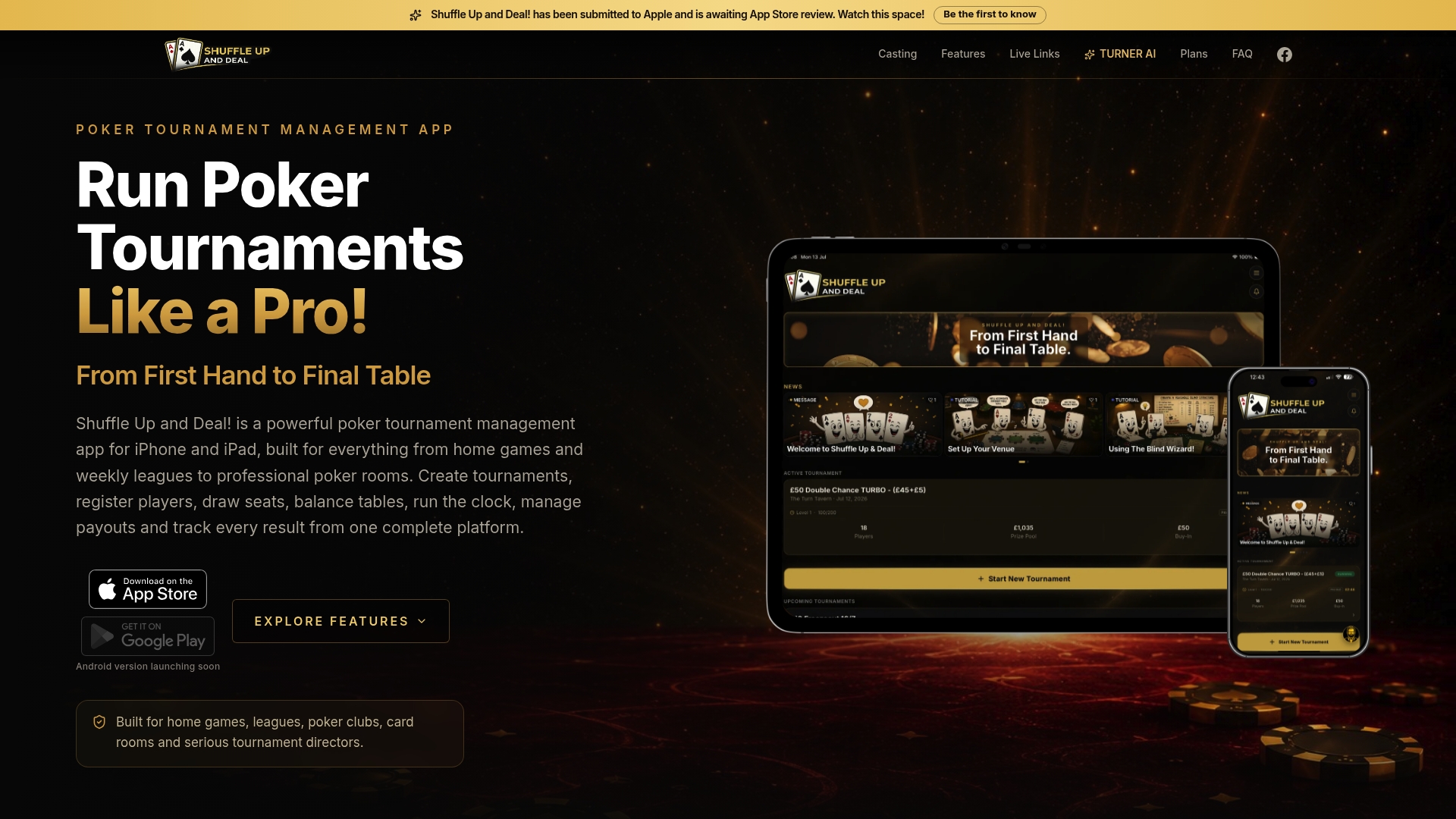
Shuffle Up and Deal builds this workflow directly into the app rather than treating it as a bolt-on. Live share links, a live tournament clock, and external display and casting are core features, and they sync across every device connected to the event, so your controller tablet and your venue screen never fall out of step.
The real advantage is that nothing extra needs entering. Smart seating, player registration, and blind level management already run through the app for tournament operations, so the same data simply feeds straight into the live display without a second data entry step. In practice, the workflow is: create your event, switch on the public display, open that link on your venue screen, then run everything else from a tablet in your hand.
Accessibility considerations for live tournament displays
A display that only works for people with perfect eyesight sitting close to the screen isn’t actually doing its job. Accessibility on a tournament screen isn’t a nice-to-have; it’s what determines whether half your room can actually use the thing you set up.
Font size is the first fix, and it’s the one organisers get wrong most often. Text that looks fine on a laptop preview often becomes unreadable once it’s stretched across a 55-inch TV viewed from across a ballroom. Test legibility from the back row, not from the desk where you configured it.
Colour contrast matters just as much, particularly for standings tables and clock displays under venue lighting that’s rarely as controlled as an office. Dark text on a mid-tone background, or thin, low-contrast fonts, disappear under fluorescent lighting or projector glare. Stick to high-contrast pairings, light text on a dark background works especially well on projectors, and avoid relying on colour alone to distinguish states (a red versus green indicator, for instance) since that excludes colour-blind viewers.
Keep layouts uncluttered. Trying to show pairings, standings, a clock, and sponsor rotations all at once in small text is ineffective. Rotating automatically between a few clean, larger views generally communicates information better. Consider providing a secondary smaller screen or a QR code link to let attendees access the information on their own phones at a readable size.
Integration with external scoring and timing systems
Most events don’t run in a vacuum. Chess tournaments often use separate pairing engines, esports events frequently pull from bracket software, and card rooms sometimes juggle a timing clock that’s independent of their registration system. A live display is only as good as the data feeding it, so how it integrates with those systems matters as much as how it looks.
The cleanest setups use a single platform that handles scoring, timing, and display generation together, because every extra integration point is another place where numbers can drift out of sync. When that’s not possible, look for tools that expose a public URL or embed code that any external system can point a browser at, rather than requiring a proprietary plugin. That’s the pattern behind most modern live display software, which typically follows a preview, publish, then public URL workflow so the display becomes a simple browser destination regardless of what’s generating the underlying data.
If you’re bridging two systems, say a timing clock from one vendor and standings from another, test the handoff before the event, not during round one. Confirm the display updates when the external system pushes a change, and check what happens if that external feed drops, because a frozen clock is worse than no clock at all. Where possible, keep timing and scoring inside one connected system: fewer moving parts means fewer places for latency or a dropped connection to cause a visible gap between what’s happening on the floor and what’s on the screen.
Real-time data accuracy and latency management
The gap between a result happening and it appearing on screen is the single detail that makes or breaks player trust in your display. A few seconds of lag is invisible to most spectators. A stale screen showing round two standings during round four is not, and it generates exactly the desk traffic you built the display to eliminate.
Accuracy starts with discipline at the point of entry. If your controller device is entering results, confirm each entry rather than batching several changes before hitting update, since batched updates create a visible jump that looks like the system’s broken even when it’s working exactly as designed. Automatic updates without manual refresh are the baseline expected of any serious display tool, and if your setup still requires someone to hit refresh, that’s the first thing to fix before the event, not during it.
Latency usually traces back to network conditions rather than the software itself. A congested venue Wi-Fi network, particularly one shared with hundreds of spectator phones, will slow down casting protocols like Chromecast noticeably faster than a wired HDMI connection. If your display starts lagging mid-event, check the network first: switch the controller device to a mobile hotspot temporarily, or move the display connection to HDMI if casting is struggling.
Build in a simple sanity check: glance at the screen every round and compare it against what you know to be true on the floor. It takes ten seconds and catches the rare instance where a sync has silently failed. Treat any unexplained delay of more than a few seconds as a fault to investigate immediately, not a quirk to tolerate.
Customisation for chess, esports, card games, and beyond
A chess tournament, an esports bracket, and a poker series all need fundamentally different things from the same screen, even though every one of them is technically “a live tournament display.”
Chess events lean heavily on board numbers and pairings, since players need to find their seat quickly, alongside a round clock that’s often the single most-watched element in the room. Esports tournaments typically prioritise bracket visualisation and a live match feed, frequently paired with an OBS overlay for streaming to an off-site audience far larger than the room itself. Card room and poker events, by contrast, tend to foreground the blind level clock, current seating or table balance, and a leaderboard or payout structure that players check constantly during late registration.
The practical implication is that a good display tool needs configurable panels rather than a fixed template. Look for the ability to choose which elements show, in what order, and how they’re themed, rather than accepting a one-size layout built for a different game entirely. Visual branding matters here too: a card room running a sponsored series wants its screen to look distinct from a scholastic chess tournament, and tools offering multiple visual themes let organisers match the display to the event rather than the other way round.
If your event spans formats, a weekend with both a chess side event and a poker tournament, for instance, don’t assume one display configuration serves both. Set each format up separately with the panels and clock behaviour that actually match how that game is played.
Common troubleshooting tips during live events
Most display problems during an event fall into a short list of repeat offenders, and knowing them in advance means you fix them in seconds instead of scrambling.
If the screen goes blank or freezes, check the display device’s power and sleep settings first; screensavers and power-saving modes are the most common silent cause of a “dead” screen. If the display shows stale data, check whether the controller device actually has an active connection, since a dropped Wi-Fi signal on the entry side will freeze the public screen even though the display device itself is working perfectly. If casting drops mid-round, switch to HDMI immediately rather than troubleshooting the wireless connection live in front of a room, then investigate the network issue once the display’s stable again.
If text is too small to read once it’s on the big screen, that’s a configuration problem to fix between rounds, not something to leave until the event’s over, since it’s actively costing you the desk-traffic reduction the display exists to deliver. If the public link won’t load on a guest’s phone, check whether your venue’s guest Wi-Fi is blocking outbound connections, a surprisingly common issue at hotels and conference centres with locked-down networks.
Keep a written fallback plan taped inside your laptop bag: which cable to grab, which hotspot to switch to, and who to call if the venue’s AV desk needs to get involved. The events that recover fastest from a display hiccup are the ones where the fix was decided in advance, not improvised in front of a queue of confused players.
Security and privacy considerations for live streamed displays
A public display link is, by definition, public, which means anyone with the URL can view it, and that’s worth thinking through before you hand it out on a flyer or announce it from the microphone.
Most tournament platforms generate a unique, hard-to-guess link rather than a predictable one, which limits access to people who’ve actually been given the URL or scanned a QR code at the venue. If your event handles sensitive information, full player names tied to payout amounts, for instance, consider whether that needs to appear on the public screen at all, or whether a first-name-and-last-initial format achieves the same transparency with less exposure.
Streaming introduces a second layer. If you’re broadcasting the display via OBS to a public audience, remember that anything visible on screen, including chat overlays, sponsor contact details, or venue information, is now visible to anyone watching the stream, not just the room. Review what’s on the public display before you go live, not after someone points out a phone number was visible for twenty minutes.
If your platform supports it, separate the admin or controller view behind a login from the public display link that requires none. That split is exactly the trust signal worth checking for when choosing a tool, since it means the people entering sensitive data work behind authentication while the public-facing screen only ever shows what you’ve deliberately chosen to publish.
Practitioner perspective: what actually goes wrong on the day
The failures that sink a live display are almost never the software. They’re a dead controller battery, a screensaver nobody disabled, or two staff members editing results on different tablets and desyncing the room. Before doors open: screen tested, hotspot charged, controller device logged in and charged. Everything else is recoverable.
- Jason
Get a live display running with Shuffle Up and Deal!
If you’ve been running your tournaments off a printed sheet and a shouted announcement, Shuffle Up and Deal! gets you to a live, self-service screen without buying a single piece of extra hardware. It bundles live share links, a live tournament clock, smart seating, and multi-device sync into one dashboard, so the display isn’t a separate project bolted onto your tournament software; it’s the same data you’re already entering, just mirrored to a screen.
Start on the free plan, build a sample event, and switch on the public display link to test it against your actual venue screen before your next event. You’ll know within ten minutes whether your setup works, and you’ll have a live poker tournament management workflow ready for the next time you run one.
Sources
- Interactive Event Screen - SocialWall (LiveWall) | RegToEVENT
- Live display software to share event agenda & updates | Eventify
FAQ
What is the fastest way to set up a live tournament display?
Generate a public or TV mode display link from your tournament dashboard, open it on your display device, then connect via HDMI, Chromecast, or AirPlay. Most organisers can complete this in under ten minutes.
Do I need special hardware for a live tournament display?
No. A browser-based display runs on a standard smart TV, projector, or laptop connected via HDMI, so there’s no need for dedicated tournament hardware.
How do I stream my live tournament display on OBS?
Add the public display URL as a browser source inside OBS. This gives you a live, self-updating overlay without retyping scores or standings manually.
What should I do if my display screen freezes during an event?
Check the controller device’s connection first, since a dropped Wi-Fi signal on the entry side is the most common cause of a frozen public screen. If casting has dropped, switch to an HDMI cable as an immediate fallback.
Does Shuffle Up and Deal! support casting to a venue screen?
Yes. Shuffle Up and Deal! generates a live share link with a dedicated tournament clock, and supports external display and casting alongside multi-device sync, so your controller and venue screen stay aligned throughout the event.